Compare a London 09:00 meeting in three cities
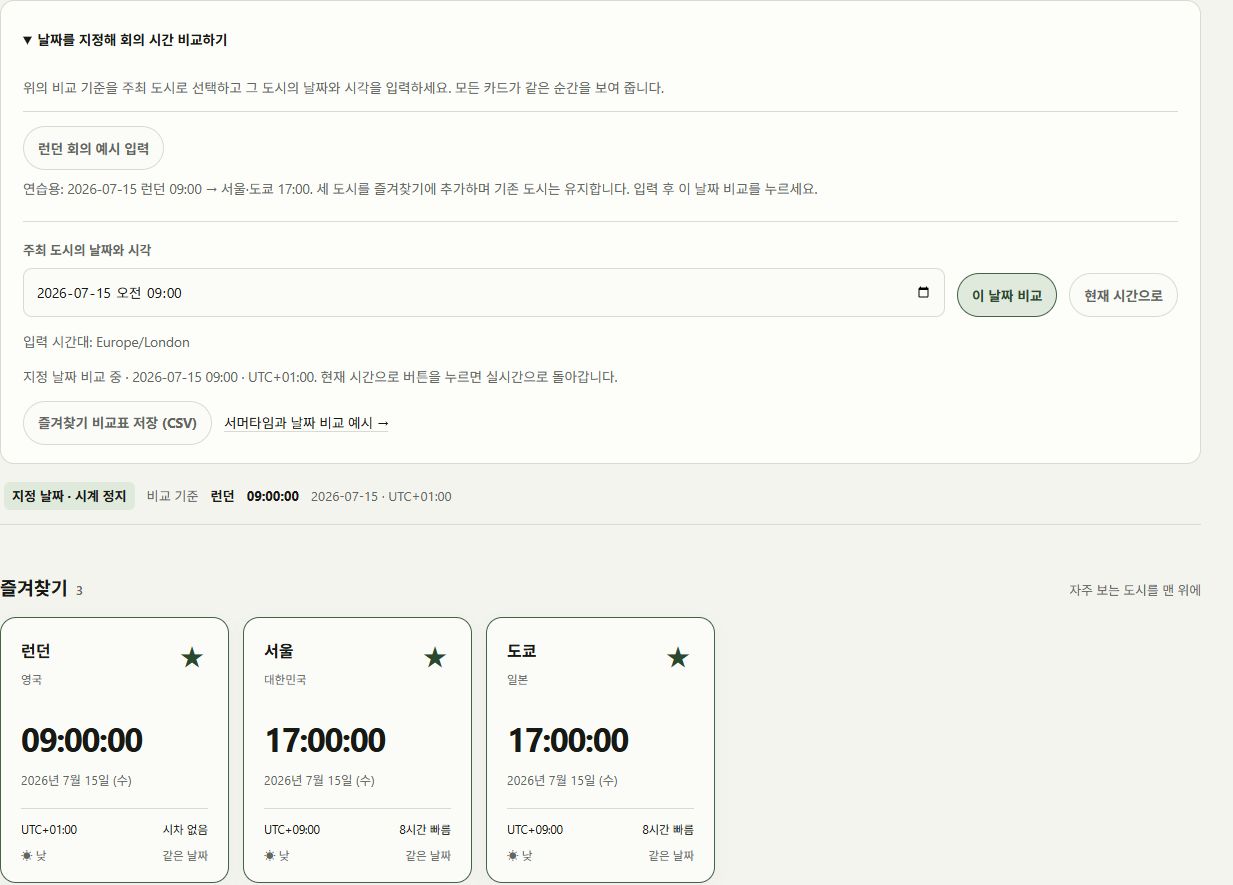
Open the dated comparison and press Fill the London example. London, Seoul and Tokyo are added to favorites while your existing cities stay. It fills 2026-07-15 09:00 with London as the reference; press Compare this date to apply it. A London input means London local time even if your device is set to Seoul.
Enter 2026-01-15 09:00 and press Compare this date, then repeat with 2026-07-15 09:00. Editing the input returns the cards to live time until you apply the new value. Check Selected date · frozen and the date shown on each card.
| Host date | London | Seoul | Tokyo |
|---|---|---|---|
| 2026-01-15 | 09:00 · UTC+00:00 | 18:00 · UTC+09:00 | 18:00 · UTC+09:00 |
| 2026-07-15 | 09:00 · UTC+01:00 | 17:00 · UTC+09:00 | 17:00 · UTC+09:00 |
Include the date when crossing midnight
Choose Seoul as the reference and apply 2026-10-06 00:30. Favorite Kathmandu: its local result is 2026-10-05 21:15. The earlier date matters as much as the 3-hour-15-minute difference.
Changing the reference after applying a date preserves the actual instant and translates the input to the new zone. To propose a different host time, edit the input and apply it again. Changing only the reference does not reschedule the meeting.
Resolve missing and repeated New York times
Choose New York and enter 2026-03-08 02:30. The tool reports a nonexistent local time rather than silently changing it to 03:30. Confirm a valid time with the host and enter it again.
2026-11-01 01:30 occurs twice. UTC−04:00 identifies the first occurrence, 14:30 in Seoul; UTC−05:00 identifies the second, 15:30 in Seoul. Choose the host’s offset and press Compare this date again to apply it. An invitation that says only “01:30 New York” does not identify the occurrence.
Save a comparison of your favorite cities
With a valid date applied and at least one favorite, press Save favorite city comparison (CSV). Rows follow favorite order and include the city, IANA zone, local date, 24-hour time, UTC offset and UTC instant. Directory search and regional filters do not add other cities to the file.
The file always uses 24-hour time, even when the screen uses 12-hour time. Include the dates and UTC instant when communicating the schedule, then record the final decision in a calendar invitation with named city zones. CSV is a comparison record; it does not book or create a recurring event.
Resume the live clock and check recurring dates
Press Back to now to resume moving clocks. Collapsing the comparison panel keeps the chosen instant, so check the Selected date badge. Reloading returns to live time while preserving saved favorite cities.
For recurring meetings, compare dates on both sides of seasonal changes. Future legislation may change time-zone rules and results. Keep the operating system and browser updated and verify important appointments in a calendar as well.
Carry the compared instant into a calendar
With a dated comparison applied, choose 15, 30, 45, 60, 90 or 120 minutes and press Save calendar event (.ics). Favorites are optional: the host time defines one event. CSV is a table of city comparisons; .ics is an event to import into a calendar app.
The London 2026-07-15 09:00 example with 60 minutes is stored as 08:00–09:00 UTC. In a calendar set to Seoul, check for 17:00–18:00. Its description includes the host time and each favorite city’s local date and zone. Rename the default event title after importing.
Downloading does not book a meeting or invite participants. Use your calendar app’s file import, then review the title, start, end and display zone before saving. No recurrence is included, and recurring meetings across DST are not planned automatically. Check for duplicates if you import a file again.
Editing the date or a repeated-time offset disables the download until you compare again. For New York 2026-11-01 01:30, UTC−04:00 saves 05:30Z and UTC−05:00 saves 06:30Z. The file cannot choose the host’s intended occurrence for you.