Start with the room and the display
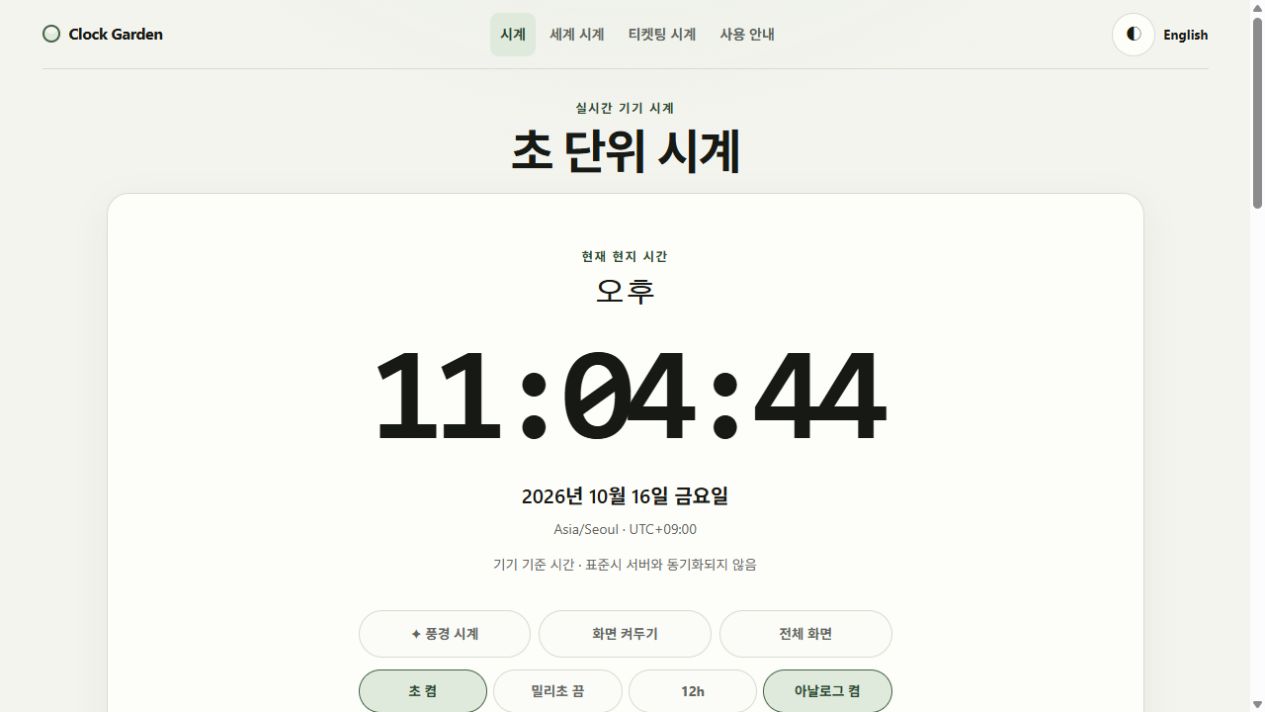
Open the clock at your usual viewing distance. Adjust device brightness until the digits are readable without dominating the room, then choose the light or dark page theme. Page colors cannot override your monitor's brightness setting.
Switch off milliseconds if the changing digits distract you. Seconds can also be hidden. The best setting is the one you can read comfortably during the task; there is no measured health benefit claimed for this theme.
Choose between numbers and scenery
The digital view gives the clearest time display. Living Clock adds illustrated or drawn environments that change with the device's hour. These are artistic day cycles, not local sunrise calculations or live weather.
In Living Clock, Browse scenes lets you choose and favorite a scene. The day preview temporarily displays a different time. Return to current time before using it as a desk clock.
Keep the screen on only when needed
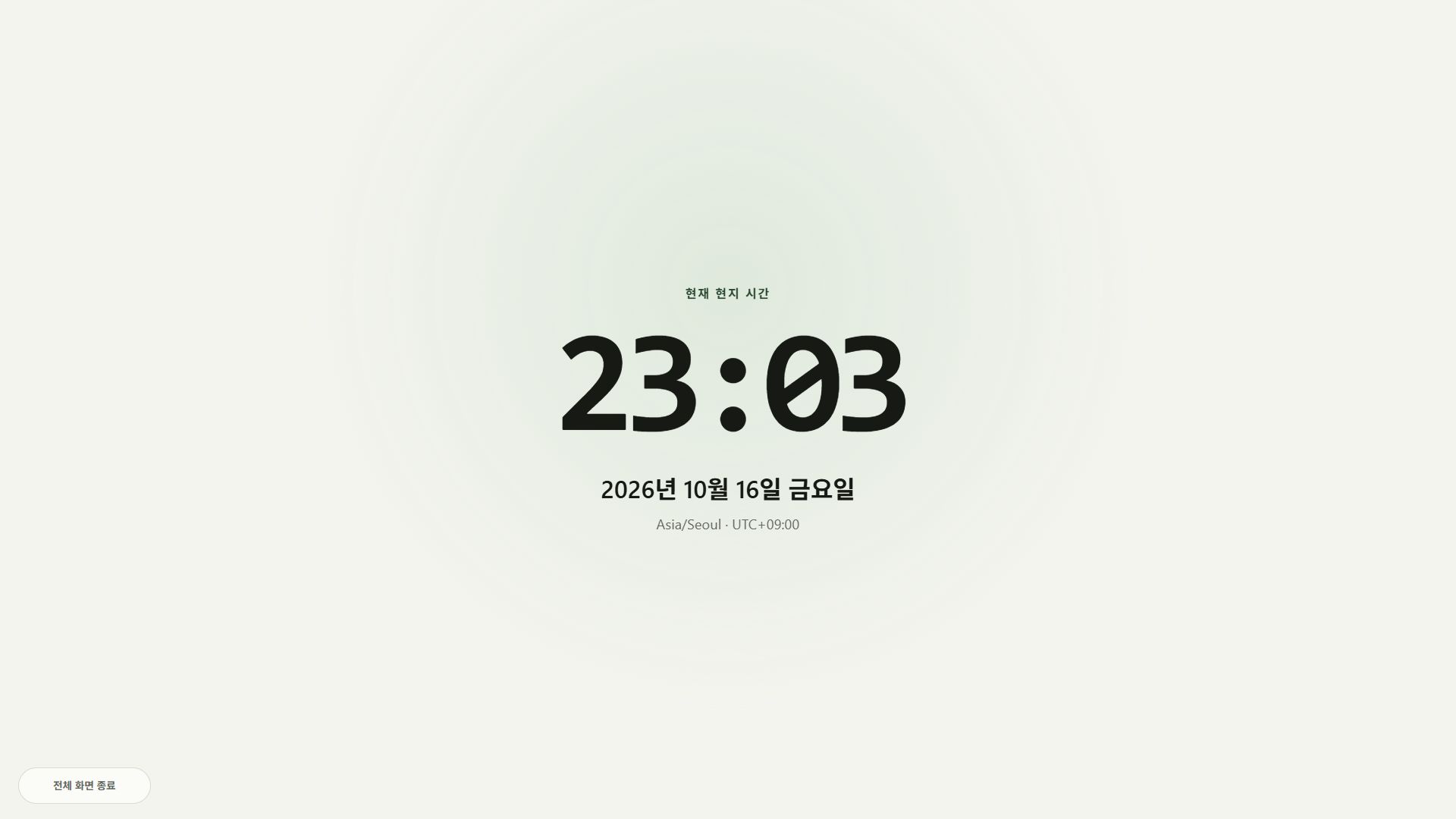
Use Fullscreen to enlarge the instrument and Keep screen awake if your browser offers it. Wake lock is a request: the browser or system can release it, especially when the page is no longer visible.
After switching tabs, check the setting again. Turn it off when finished. Leaving any illuminated display on uses power; Clock Garden has not measured battery or light-emission savings.
Troubleshoot an uncomfortable setup
If the display looks crowded, hide milliseconds and the analog face, leave fullscreen, or try the numeric view. For reduced decorative movement, enable your operating system's reduced-motion preference.
If the fullscreen time is hard to read, use Esc to leave and adjust browser zoom. An absent wake-lock control can indicate an unsupported environment. Fullscreen and screen wake lock are separate controls; check each state.
Try a setup for your actual viewing task
For a presentation clock viewed from a distance, start in numeric mode and hide milliseconds and the analog face. Enter fullscreen after checking the digit size. Hide seconds too if their movement is unnecessary.
For scenery on your desk, enable Living Clock and choose a scene. Return from preview to current time, then request wake lock separately if needed. These setups are starting points; brightness, battery use and readability depend on your actual environment.
| Task | Digits | Extra controls |
|---|---|---|
| Presentation / distance | Milliseconds off · analog off | Numeric mode + fullscreen |
| Desk clock | Seconds optional | Living Clock + wake lock |
| Less movement | Seconds and milliseconds off | OS reduced-motion preference |